

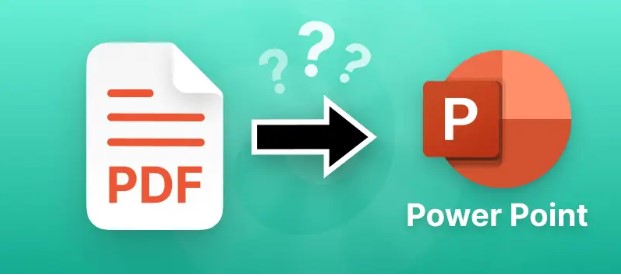
Converting pdf to ppt is one of the most in-demand tasks for students, professionals, educators, and business users. Whether you want to reuse content, design a captivating presentation, or extract important data from a PDF file, knowing how to convert it smoothly without losing quality is essential. This ultimate guide covers everything you need to know—from choosing the right tools to preparing your files and ensuring your final PowerPoint presentation looks perfect.
Why Convert PDF to PPT?
PDF files are great for preserving formatting, but they are not easy to edit. PowerPoint, on the other hand, is ideal for visual storytelling, slideshows, and professional presentations. When you convert pdf to ppt, you unlock several advantages:
- Easy editing and customization
- Ability to add animations, transitions, and multimedia
- Reuse of text and images
- Faster presentation preparation
- Enhanced collaboration and review
If you frequently work with reports, research papers, eBooks, brochures, or scanned documents, converting them into PPT slides can significantly streamline your workflow.
Understanding the PDF to PPT Conversion Process
Before choosing a tool, it’s important to understand how the conversion process works. PDF documents consist of fixed layouts, while PPT slides are dynamic and editable. Therefore, the converter needs to:
- Extract text while maintaining formatting
- Detect images and place them correctly
- Preserve fonts and layout
- Convert vector graphics without distortion
- Manage multi-page documents properly
High-quality converters ensure your data remains intact and editable once imported into PowerPoint.
Preparing Your PDF for Conversion
To achieve a smooth pdf to ppt conversion, you should prepare your file ahead of time:
Ensure the PDF Is Not Locked
Password-protected or restricted PDFs can result in incomplete conversions. Remove any restrictions before converting.
Check for Scanned Pages
If your PDF contains scanned pages, choose a converter with OCR (Optical Character Recognition). OCR ensures the text becomes editable instead of appearing as an image.
Optimize File Quality
Blurry images or low-resolution scans may not convert cleanly. Use a clear, high-quality original document whenever possible.
Top Methods to Convert PDF to PPT
There are several ways to convert pdf to ppt, depending on your needs and resources. Here are the most reliable methods:
1. Online PDF to PPT Converters
Online tools are fast, free, and convenient. They are ideal if you want a quick, no-installation solution. Many online converters offer drag-and-drop functionality and deliver results in seconds.
Popular features include:
- Easy uploading
- High-quality output
- OCR technology
- Bulk conversion options
- Cloud storage compatibility
However, avoid uploading sensitive documents on free online platforms for privacy reasons.
2. Desktop Software for PDF to PPT
If you handle regular conversion tasks or work with sensitive content, desktop software is the better option.
Advantages include:
- Higher accuracy
- Better formatting preservation
- Offline access
- Advanced editing tools
- Enhanced security
Professional desktop converters are suitable for large files, scanned documents, and corporate use.
3. Adobe Acrobat Pro
Adobe Acrobat Pro is one of the most powerful and reliable solutions for converting pdf to ppt. It preserves layout, fonts, images, and formatting with great accuracy.
Benefits of Adobe Acrobat include:
- Simple export options
- Excellent OCR
- Trusted reliability
- Suitable for complex PDFs
Although it is a premium tool, its accuracy makes it worth it for users who regularly convert files.
4. Microsoft PowerPoint
Some versions of PowerPoint allow importing PDF pages into slides. While this method may not be as accurate as dedicated converters, it works for simple documents. It is best for users who do not want to install additional software.
5. Mobile Apps for PDF to PPT
For users who need conversion on the go, mobile apps provide convenience. They allow you to convert documents directly from your phone. These tools work best for simple conversions and quick edits.
Features to Look for in a PDF to PPT Converter
Choosing the right converter can make a big difference. Look for the following features:
High-Quality Formatting
The tool should preserve fonts, colors, images, and layout without distortion.
OCR Support
If your PDF contains scanned pages, OCR is a must-have so text remains editable in your PPT.
Batch Processing
For users handling multiple files regularly, batch conversion saves time and effort.
Security and Privacy
Always choose converters that guarantee the safety of your uploaded files.
Cloud Storage Support
Integration with Google Drive, Dropbox, or OneDrive ensures faster and more flexible conversion options.
Customization Options
Some tools allow selecting specific pages, merging slides, or adjusting layout preferences.
Common Issues and How to Avoid Them
Even with good tools, issues may arise during pdf to ppt conversion. Here’s how to avoid them:
Text Misalignment
Choose converters that maintain layout accuracy. You can manually adjust slides afterward if needed.
Missing Images
Ensure the PDF contains properly embedded images. Some converters may skip large or low-quality images.
Font Changes
If the converter cannot detect a specific font, it may replace it. Embedding fonts in your PDF before conversion helps maintain consistency.
Large File Sizes
Compress your PDF beforehand or use tools with optimization features.
Tips for Creating a Perfect PowerPoint After Conversion
Once the conversion is complete, enhance your presentation by:
Adding Design Elements
Incorporate color themes, modern templates, icons, and animations to make your slides visually appealing.
Editing Text for Clarity
Restructure paragraphs, add bullet points, and highlight key points for better readability.
Tweaking Images and Graphics
Resize, crop, or replace images to improve aesthetic uniformity.
Maintaining Consistency
Use consistent fonts, colors, and spacing across all slides for a polished finish.
Best Practices for Using PDF to PPT Tools
Follow these tips for efficient and effective conversion:
- Always use high-quality, clear PDFs
- Save an editable backup copy of your converted PPT
- Choose a recognized converter for complex files
- Avoid free tools for confidential documents
- Review and edit your slides after conversion
These practices help ensure your final presentation looks clean and professional.
Final Thoughts
Smooth pdf to ppt conversion is easy when you have the right tools and preparation. Whether you’re a student preparing a project, a business professional designing a client presentation, or a researcher converting academic material, understanding this process can save you time and effort.
By choosing the right converter, preparing your PDF properly, and making post-conversion edits, you can turn any PDF into a visually appealing and fully editable PowerPoint presentation. With this guide, you now have everything you need to ensure your pdf to ppt workflow is smooth, efficient, and high-quality.